

How to Add Gift Aid to Your WordPress Donation Form?


Table of Content
Download Paymattic – it’s Free!

Subscribe To Get
WordPress Guides, Tips, and Tutorials
We will never spam you. We will only send you product updates and tips.
Every year, UK charities leave millions of pounds unclaimed simply because donors never tick a box. Gift Aid turns a £10 donation into £12.50, a 25% boost that costs the donor nothing and comes straight from HMRC, not their pocket.
Yet plenty of charities still don’t offer it on their websites, either because they think it’s complicated to set up or because their donation plugin doesn’t support it properly.
If you’re collecting donations through a WordPress site, adding a compliant Gift Aid declaration to your form with Paymattic can take less than five minutes.
In this guide, I’ll show you the step-by-step process for adding gift aid to your WordPress donation form with Paymattic.
But first, let’s cover some basics.
TL;DR
- Gift Aid lets UK charities reclaim 25p for every £1 a UK taxpayer donates, at no extra cost to the donor.
- Paymattic Pro now builds Gift Aid directly into the Donation Progress Item field, so there’s no separate plugin or manual process needed.
- You’ll need Paymattic Pro installed, a form with a Donation Progress Item field, and registered UK charity status before you can turn it on.
- Enabling it takes two steps: open the field settings, then toggle Gift Aid on and set your declaration text.
- Both the checkbox label and the declaration wording are fully editable, so you can match your charity’s tone while staying compliant.
- Once enabled, donors see a checkbox, the declaration, and an address section right on the same form.
- A shortcode lets you get a signed PDF declaration link sent to your inbox for every Gift Aid donation, making claim records easy to track.
- Not switching this on means quietly losing a 25% top-up on every eligible donation you’re already receiving.
What is gift aid?
Gift Aid is a UK government tax relief scheme that lets registered charities reclaim the basic rate of tax on donations made by UK taxpayers. For every £1 a donor gives, your charity can claim back an extra 25p from HMRC, at no cost to the donor.
To claim that benefit, the donor must be a UK taxpayer and has to explicitly declare that they want their donation to qualify. That declaration is a legal requirement, not a formality, which is why it needs to be built into your donation form correctly rather than bolted on as an afterthought.
Why gift aid matters for your fundraising?
A £10 donation becomes £12.50 when Gift Aid is claimed. That’s a 25% uplift on every eligible donation, without asking donors to give more.
For charities running regular campaigns, that adds up fast. If a third of your donor base is UK taxpayers who tick the Gift Aid box, you’re effectively getting a quarter more revenue from that segment for doing nothing except asking the question at the right moment in your donation flow.
The friction point is usually technical, not financial; most donation plugins either don’t support Gift Aid at all, or require a separate form, a manual process, or a third-party add-on to collect the declaration and donor address HMRC requires.
Paymattic builds it directly into the donation field itself, so there’s no extra tool to manage and no gap where a valid claim slips through because the paperwork wasn’t collected properly.
Before you start: Prerequisites
Before enabling Gift Aid on your form, make sure you have:
- Your organization registered as a UK charity eligible to claim Gift Aid with HMRC
- Paymattic installed and activated on your WordPress site
- A donation form that already includes a Donation Progress Item field.
Remember, HMRC won’t process claims from an organization that isn’t registered.
Tutorial: Steps to add gift aid to your WordPress donation form
Once your prerequisites are in place, turning on Gift Aid takes about two minutes.
Without further ado, let’s jump into the key steps to add gift aid on your WordPress site with the help of the Paymattic plugin.
Step 1: Install & activate Paymattic Pro
Before starting to install and activate the Paymattic Pro version, you must have the .zip file of the Paymattic Pro Plugin.
To get the zip file, first purchase the Pro plugin from here.
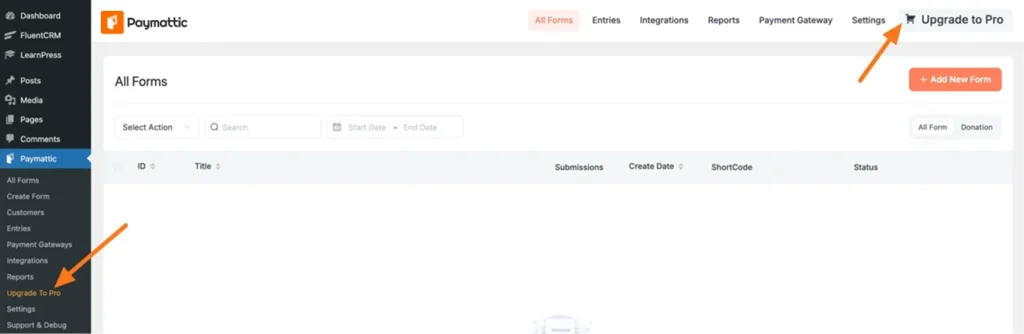
Or, simply go to the Dashboard of Paymatic’s free version and click on the Upgrade to Pro button to purchase the Pro version.
If you haven’t installed Paymattic yet, here’s how to install and activate Paymattic in WordPress.
Ready to get started?
Experience payments and donations for WordPress like never before. Try Paymattic now!
Step 2: Open the donation progress item settings
After installing Paymattic, now follow the steps mentioned below.
- Go to All Forms from the Paymattic navbar.
- Click the pencil (edit) icon on the donation form you want to update or click on the Add New Form button to create a new form.
- Find your Donation Progress Item field in the form builder and click the settings (gear) icon on it.
Step 3: Enable gift aid
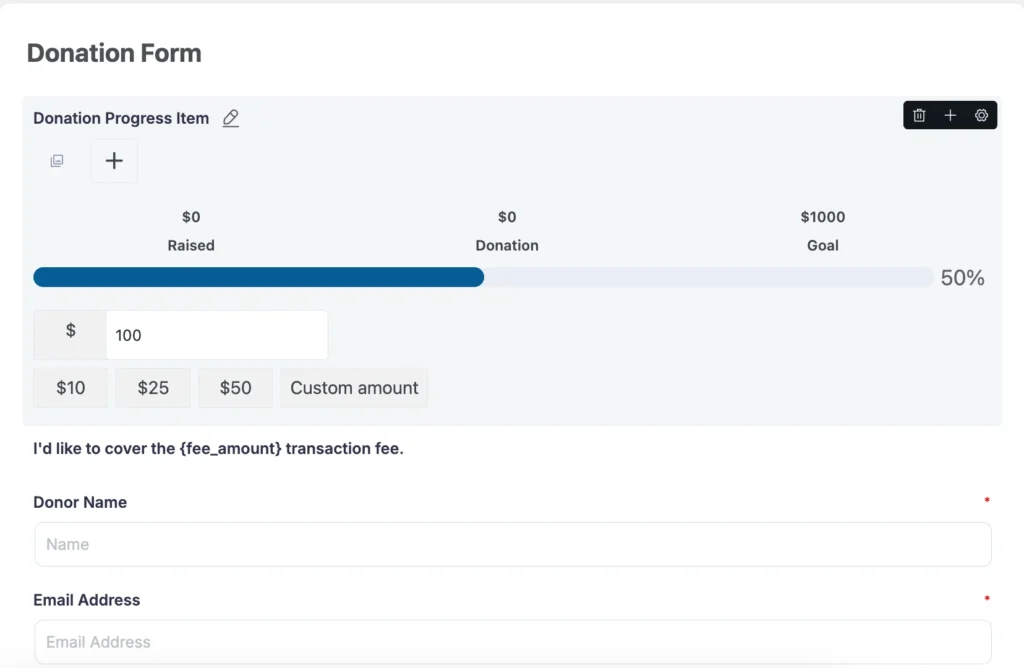
Inside the donation progress item field settings panel, scroll to the bottom of the General tab. You’ll find the Enable Gift Aid toggle.
While you switch it on, two new fields will appear:
- Gift Aid title: The heading shown to donors above the declaration checkbox (e.g., Boost your donation with Gift Aid)
- Gift Aid declaration text: The full declaration statement the donor agrees to when they check the box
You can customize both fields to match your organization’s tone, but if you’re not sure what wording HMRC expects, the default text is safe to use as-is; it covers the required declaration language.
Once you’re happy with both fields, click Update to save.
What your donors see on the frontend:
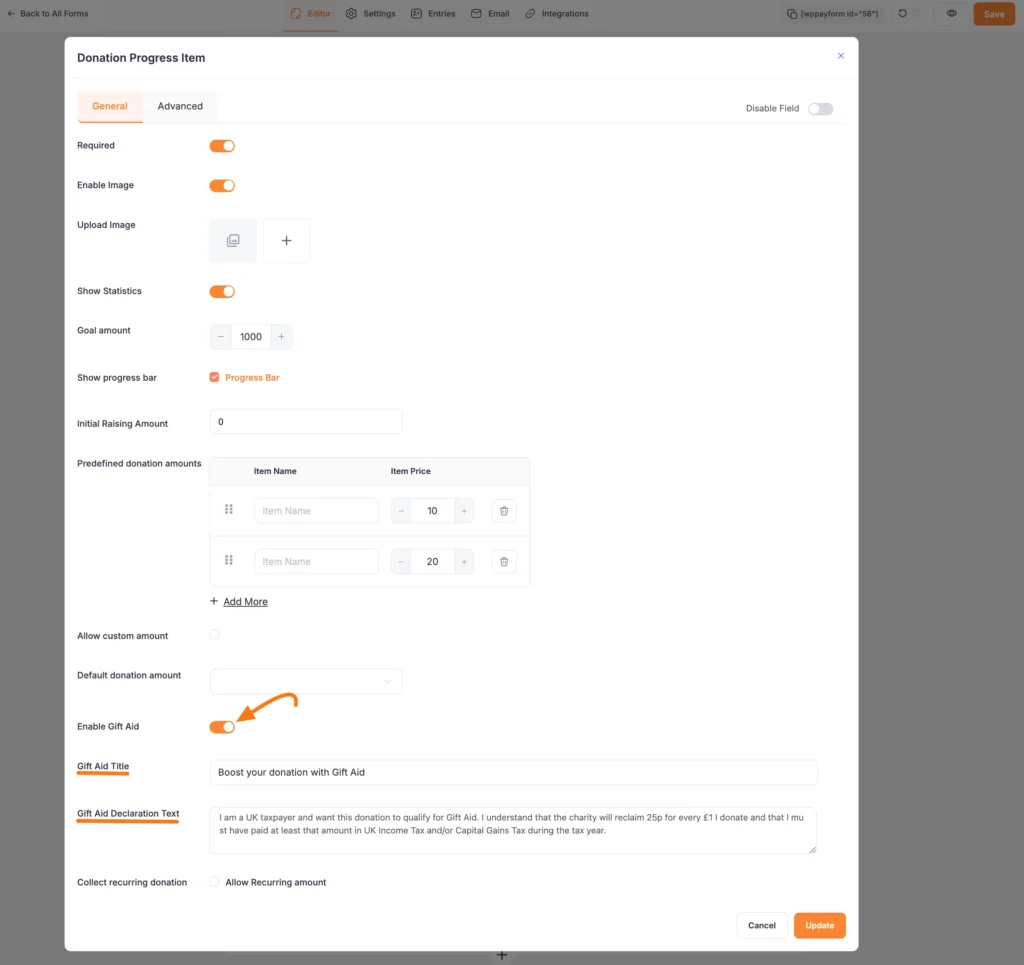
After Gift Aid is enabled, your donation form displays a new section right below the donation amount:
- A checkbox, labeled with whatever you entered in Gift Aid Title
- The full declaration text underneath, so donors know exactly what they’re agreeing to
- A “Your address for Gift Aid” section, asking for house name or number, an optional second address line, town or city, and postcode.
Donors check the box to confirm they are UK taxpayers and agree to the declaration, then provide their address so the charity can process the Gift Aid claim.
Here’s a demo of the Paymattic form with Gift Aid enabled.
Bonus: Get a declaration record for every Gift Aid donation
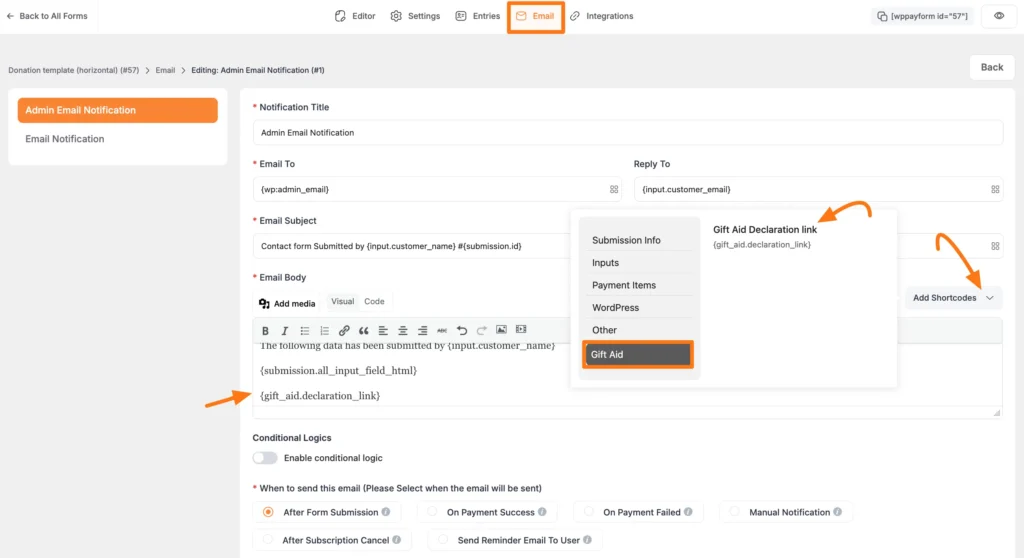
Every time someone submits your form with Gift Aid checked, Paymattic automatically generates a downloadable Gift Aid declaration document for that submission. You can get a direct link to it delivered in your admin notification email. To do so, follow the steps mentioned below:
Open the email notification editor
- Go to your form and click the Email tab.
- Open Admin Email Notification (or whichever notification you want to include it in).
- In the Email Body, click Add Shortcodes and select the Gift Aid category.
You’ll see the Gift Aid Declaration link, which inserts this shortcode: {gift_aid.declaration_link}
Click it to add it to the email body, or type it in manually. Then click Save.
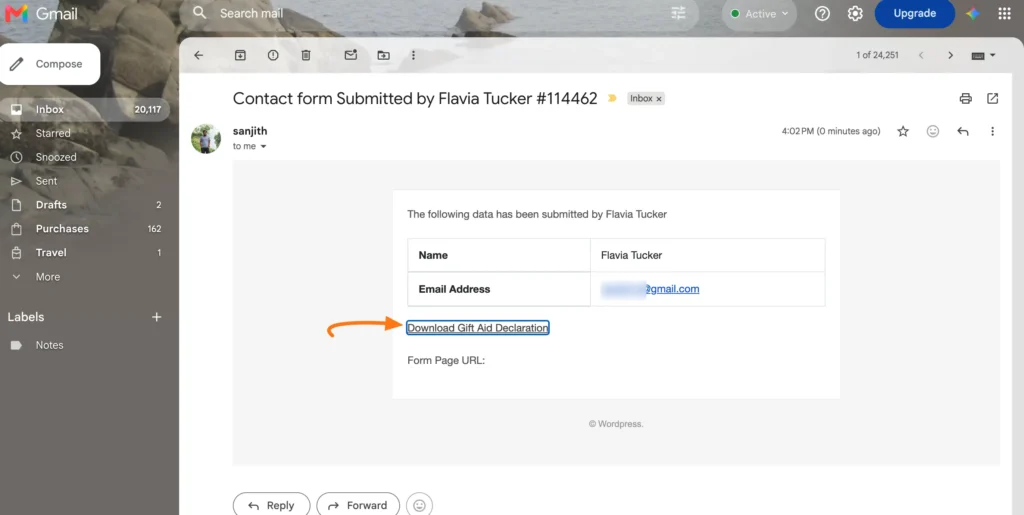
Whenever a donor opts into Gift Aid, your admin notification email includes a Download Gift Aid Declaration link. Clicking it pulls up a PDF of that donor’s signed declaration, exactly the kind of documentation you need on file when you submit a Gift Aid claim to HMRC.
Wrapping up
Gift Aid helps to bring free money for your charity; the only real barrier is making sure your donation form actually asks for it and collects everything HMRC needs to process the claim. Skipping that step means you’re leaving 25% on the table from every UK taxpayer who already trusts you enough to donate.
Most WordPress donation plugins treat Gift Aid as an afterthought; you either need a separate add-on, or a third-party integration.
Paymattic includes it alongside other essential fundraising features like recurring donations, fee recovery, donation progress bars, and multiple payment gateways. The plugin lets you manage your entire donation workflow from a single plugin instead of piecing together multiple tools.
Hope this guide helps you to set up gift aid for your WordPress donation form. If you have any further questions and need assistance from us, please feel free to comment below.
Best wishes for your charity work.
Frequently asked questions
Here are answers to some frequently asked questions regarding “How to add gift aid to a WordPress donation form”.
1. Does Gift Aid cost the donor anything?
No. Gift Aid doesn’t take money from the donor; it’s a reclaim of tax already paid to HMRC. The donor’s payment amount stays exactly the same; your charity receives an additional 25% on top from HMRC separately.
2. Is Gift Aid automatic once it’s set up?
The setup is automatic in the sense that the checkbox, declaration, and address fields appear on your form without any manual coding. But the donor still has to actively check the box and confirm they’re a UK taxpayer; you can’t apply Gift Aid to a donation without that declaration.
3. Do I need Paymattic Pro to use Gift Aid?
Yes. Gift Aid is available on the Pro version of Paymattic. It’s configured inside the Donation Progress Item field, so you’ll also need that field on your form.
4. Can I edit the Gift Aid declaration wording?
Yes. Both the Gift Aid Title and the Gift Aid Declaration Text are fully editable. Paymattic provides compliant default wording, but you can adjust it to match your organization’s tone as long as the core declaration meaning stays intact.
5. What happens to the Gift Aid claim data after a donor submits?
Paymattic generates a signed declaration PDF for each Gift Aid-eligible submission. You can link to it directly from your admin notification email using the {gift_aid.declaration_link} shortcode, giving you a record for every claim without extra manual tracking.
Join the thousands already enjoying Paymattic Pro!

Madhobi
This is Madhobi, a content writer at WPManageNinja with expertise in technical writing and email marketing. Outside of work, she likes traveling and exploring new places.

Leave a Reply