

How To Cancel Recurring Payments On PayPal (Desktop + Mobile)


Table of Content
Download Paymattic – it’s Free!

Subscribe To Get
WordPress Guides, Tips, and Tutorials
We will never spam you. We will only send you product updates and tips.
TL;DR: Quick steps to cancel recurring payments on PayPal
With PayPal directly:
- Log in to PayPal
- Go to Settings → Payments → Automatic Payments
- Select the merchant
- Click Cancel, then confirm
With Paymattic (one click, no PayPal dashboard needed):
- Go to your Paymattic user dashboard (customers) or Entries (merchants)
- Click Manage Subscription
- Select the subscription
- Click Cancel
Scroll down for full step-by-step instructions with screenshots.
A couple of months ago, I signed up for a service, which was a music platform basically. They offered me a two-week free trial, and I thought it was no big deal.
However, weeks later, I started receiving those “You’ve been charged” emails, and I was wondering why my PayPal balance kept shrinking.
The same thing can happen to you. Maybe you subscribed to a service you genuinely needed at the time, but now it just doesn’t serve you anymore. Yet, the payments keep rolling in like clockwork.
We’ve all been there. Stopping those recurring charges is actually pretty simple, once you know where to click.
So in this guide, I’ll walk you through exactly how to cancel recurring payments on PayPal, whether you’re a customer looking to stop a subscription or a merchant needing to cancel it for a client.
For customers: How to cancel recurring payments on PayPal (Desktop)
PayPal recurring payments streamline the process of making transactions at regular intervals. Whenever you purchase any subscription-based service, you have to pay for it weekly, monthly, or even yearly.
Automatic payment for PayPal reduces the hassle of manual payments. However, once you’re done with the service, you need to stop that automatic payment.
Let’s see the steps for how to cancel a recurring payment on PayPal as a customer. Most importantly, you have to go to their website to cancel automatic payments on PayPal.
PayPal doesn’t support any third-party tool or site to maintain its recurring program. So, if you cancel your subscription on the service provider’s site, you still have to cancel it from the PayPal dashboard too. (But I’ve got a surprise for you at the end.)
So, if you’re a customer looking to stop a recurring payment on PayPal, follow these steps:
- Go to the PayPal website and sign in to your account.
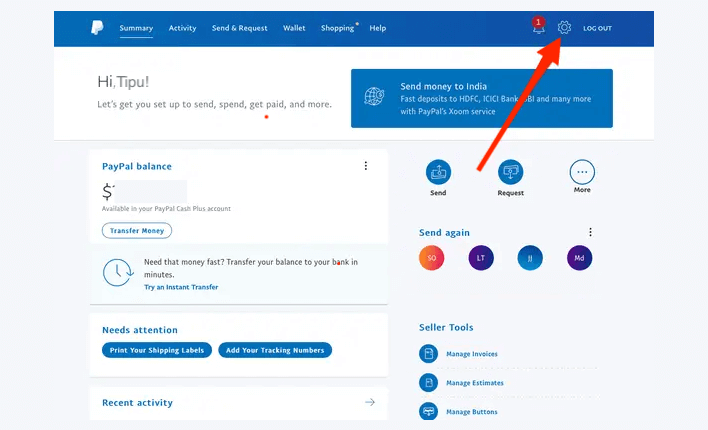
- Click on the “gear icon (⚙️)” located at the top-right corner of the page. It’ll take you to your account settings.
- Select the “Payments” tab from the settings menu.
- Navigate to “Automatic payments” and click on “Manage automatic payments”. Here you’ll find a list of merchants with whom you have active subscription payments.
- From the list, choose the merchant whose subscription you wish to cancel.
- After selecting the merchant, you’ll see the status of your subscription. Here you’ll see an “active” and a “cancel” button on the right panel. You’ll also find your subscription details on this page.
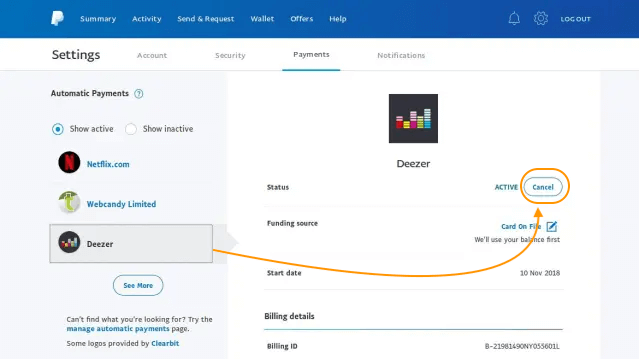
- Click on “Cancel,” and it’ll direct you to a confirmation page.
- Click “Cancel Automatic Payments” to ensure you’ll no longer be charged by this merchant.
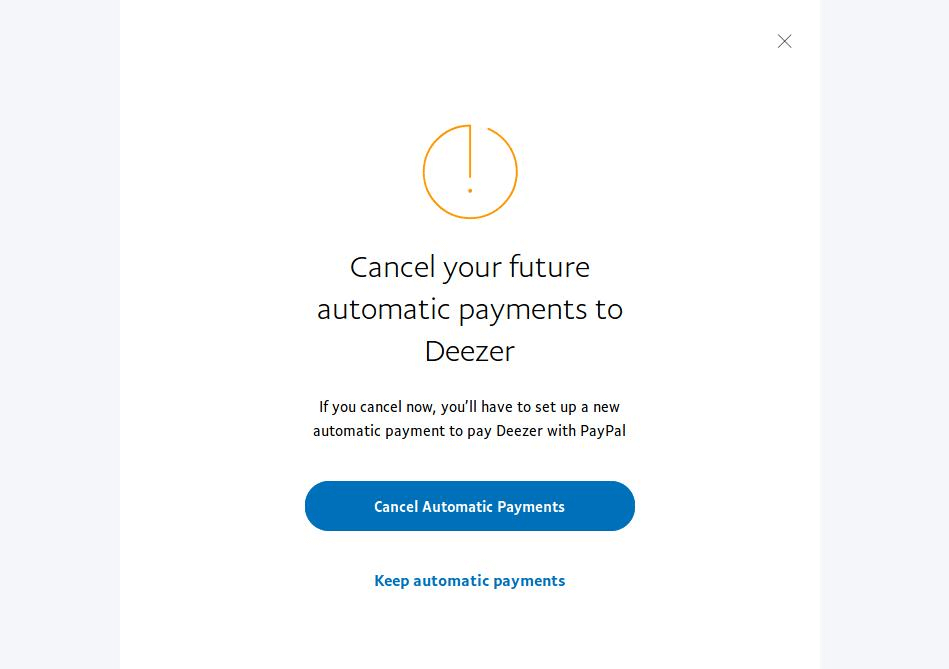
These are the steps you need to follow to cancel an automatic payment on PayPal with a desktop. Feel like it’s a bit complicated? Wait for the surprise, then.
For merchants: How to cancel recurring payments on PayPal business account
If you’re a business owner, there could be multiple reasons to stop anyone’s subscriptions or cancel automated payments. Maybe your customer wants out of their subscription, or maybe you’re proactively ending a service.
If you’re using PayPal for your nonprofit, you might need to cancel a recurring donation when a donor no longer wants to give regularly.
Follow the steps below to easily cancel recurring payments on a PayPal business account with a desktop:
- Go to the PayPal website and sign in to your business account.
- On your dashboard, look for the “Recurring Payments” link under Quick Links.
- If you don’t see it, hover over “Pay & Get Paid”, then click “Subscriptions” under “Accept Payments.”
On this page, you’ll find all your subscriptions, labelled as “active profiles”.
- Browse the active profiles to find that customer’s name. Alternatively, search by the customers’ subscription ID.
- Once you find the subscription profile, click on it to see the details.
- Click the “Cancel” button, then follow the on-screen steps to confirm.
PayPal will notify your customer that the subscription will end at the close of the current billing cycle. They’ll still receive service until that period ends, whether it’s monthly or biweekly.
Subscribe Newsletter
Subscribe to our newsletter for updates, exclusive offers, and news you won’t miss!
Bonus: How to stop automatic payments on Paypal app (Mobile)
You can also stop automatic payments using the PayPal app. Yes! The PayPal mobile app supports managing subscriptions, too.
Here’s how to cancel a payment using the PayPal app:
- Open the PayPal mobile app and tap Menu
- Tap Subscriptions or Linked Businesses
- Tap the merchant to view or update
- Tap Account
- Tap Unlink to remove PayPal as your payment method
- Tap Unlink to confirm the cancellation
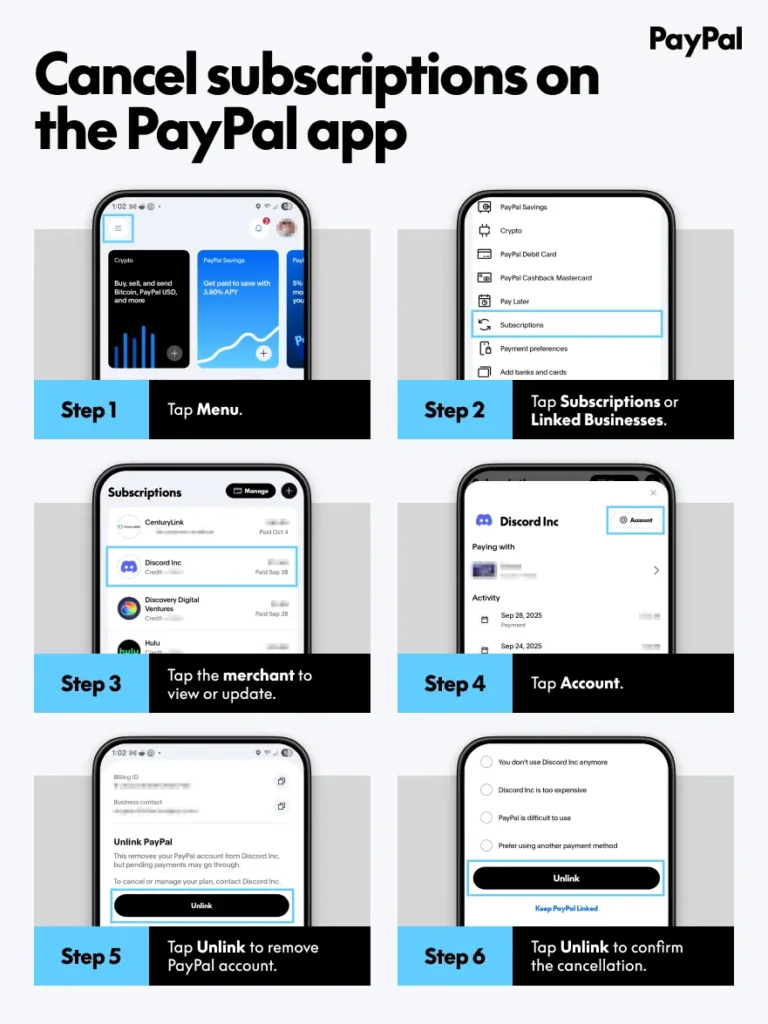
These are the three methods for customers or merchants to cancel recurring payments on PayPal.
The surprise: Cancel recurring payments on PayPal with one click
This is the surprise I was talking about. We’ve seen three different but a bit lengthy processes of canceling an automatic payment on PayPal. What if I told you that you can manage this with just one click?
Whether you are a customer or a merchant, it doesn’t matter. You can manage your subscription billing without needing to go to the PayPal dashboard.
Yes, you can do this if you’re using Paymattic, the simplest payment and donation plugin for WordPress.
If you’re a customer, Paymattic allows a dedicated user dashboard to manage your recurring or subscription payments. You can simply go to the user dashboard, check how many subscriptions you’ve had active to date, and choose the one you want to cancel.

Go to the user dashboard and click on Manage Subscription. Here you can find all the services or products that have a recurring billing system. Choose the one you want to discontinue and click Cancel.
That’s it! You’ve successfully canceled the subscription payments on PayPal.
If you’re a merchant, go to the Entries from the Paymttic dashboard. Search by the customer name or email, and click on View Details. It’ll open the full customer details there. Scrolling down a bit, you can see a Subscription (Recurring Payments) section.
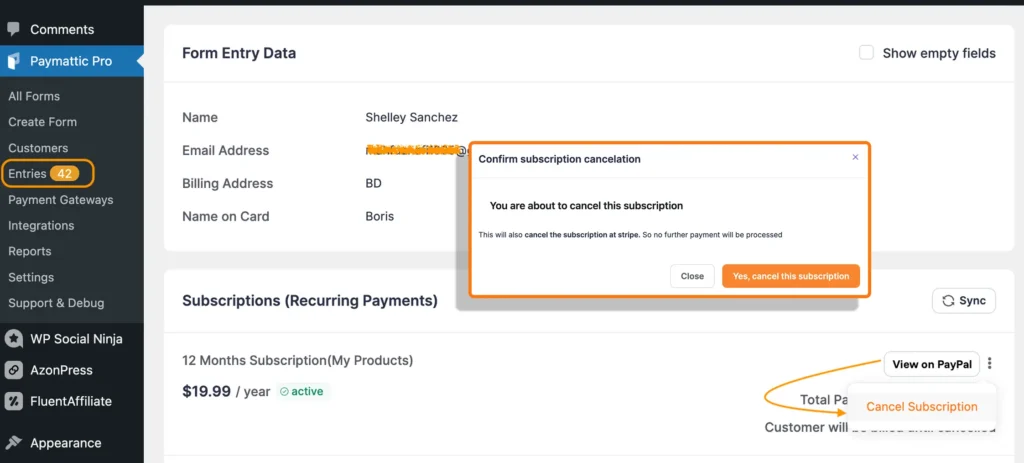
Hover over the three dots beside View on PayPal, and click on Cancel Subscription. A confirmation pop-up will appear. Just confirm the cancellation, and that’s it!
This is the latest feature that Paymattic just released. You won’t find this on any other WordPress plugins or third-party websites. Also, you can say goodbye to the complex process of the PayPal dashboard.
Don’t just trust me. Try it, and it’ll give you the best way to cancel recurring payments on PayPal from a single dashboard, whether you’re a merchant or a customer.
Ready to get started?
Experience payments and donations for WordPress like never before. Try Paymattic now!
Troubleshooting: Common issues when cancelling PayPal recurring payments
Cancelling should be simple, but I get it, sometimes it doesn’t go as planned. Here are the issues people run into most, and what’s actually happening.
1. The subscription still shows as “active” after I cancelled
This trips up a lot of people. Once you hit cancel, PayPal doesn’t remove the subscription instantly; it marks it to end at the close of your current billing cycle. So if you’re mid-cycle, you’ll still see it listed as active until that period runs out.
‘Check the subscription details page; it should show a “cancelled, ends on [date]” note even while it still says active at the top.
2. I got charged again after cancelling
Two things usually explain this. First, if your billing date landed on the same day you cancelled, PayPal may have already processed that charge before your cancellation took effect.
Second, and more common, some merchants run their subscription billing entirely outside PayPal, even if you originally checked out with PayPal. In that case, cancelling on PayPal’s end doesn’t affect the merchant’s billing system; you’ll need to cancel directly with them as well.
3. I can’t find the subscription in “Manage automatic payments”
If a merchant isn’t showing up, it usually means they’re not billing you through PayPal’s recurring payment system, even if PayPal was your original payment method. Check your bank or card statement for the merchant’s name and reach out to them directly to cancel.
4. The cancel button is greyed out or not responding
This is usually a browser issue rather than an account issue. Try refreshing the page, clearing cookies, or switching to the PayPal app instead of the desktop. If it persists, it can also mean the subscription is already in a pending cancellation state from a previous attempt.
Give it 24 hours and check again.
5. I cancelled, but I’m not sure if it worked
Look for a confirmation email from PayPal right after cancelling. If you don’t see one, go back to the merchant’s listing under Automatic Payments; it should now read “cancelled” with an end date instead of “active.”
No confirmation email, and it still says active means the cancellation didn’t go through. Try again.
Wrapping up
At the end of the day, recurring payments can catch you off guard if you’re not paying attention.
Whether you’re a customer who wants to take charge of your subscriptions or a merchant handling things on behalf of a donor or customer, the steps are simple.
PayPal gives you full control over your subscription management.
However, there are plenty of alternatives if you want to manage everything from a single dashboard.
FAQs
Q. How long does it take for a PayPal cancellation to apply?
Ans: Immediately. No future payments will be processed. But it doesn’t stop the current period; it just prevents the next charge.
Q. Will I get a refund after canceling?
Ans: Not automatically. PayPal doesn’t refund the current billing period just because you cancelled. Refunds are entirely up to the merchant’s own policy; you’ll need to contact them directly.
Q. Can I restart a canceled subscription?
Ans: Yes, but you’ll need to re-subscribe manually.
Q. Can I cancel PayPal recurring payments without logging in?
Ans: No. You must log in to your PayPal account to cancel automatic payments.
Q. Can I pause a recurring payment instead of cancelling it?
Ans: PayPal doesn’t have a built-in pause feature. Your only options are to let it run or cancel it, if you want a pause, you’d need to check if the merchant offers that on their end.
Q. Why does PayPal still show a subscription as “active” right after I cancel it?
Ans: Because the cancellation applies going forward, not retroactively. It’ll keep showing active status until your current billing period ends; that’s expected behavior, not a failed cancellation.
Q. Can I cancel multiple recurring payments at once?
Ans: No. PayPal requires you to cancel each subscription individually.
Q. What happens if I cancel on the last billing day?
Ans: If you cancel after the billing cutoff:
- Future charges will be stopped
- The current charge may still go through
Join the thousands already enjoying Paymattic Pro!

Tipu Deb
Hey! Tipu here, working as a Marketing Strategist at WPManageNinja & Paymattic. A nature lover and a person who is addicted to exploring historical events. In my leisure, you’ll find me playing with different musical instruments.
Leave a Reply